 English
 Deutsch
 Polski
 Română
 Čeština
 Melayu
 Bahasa Indonesia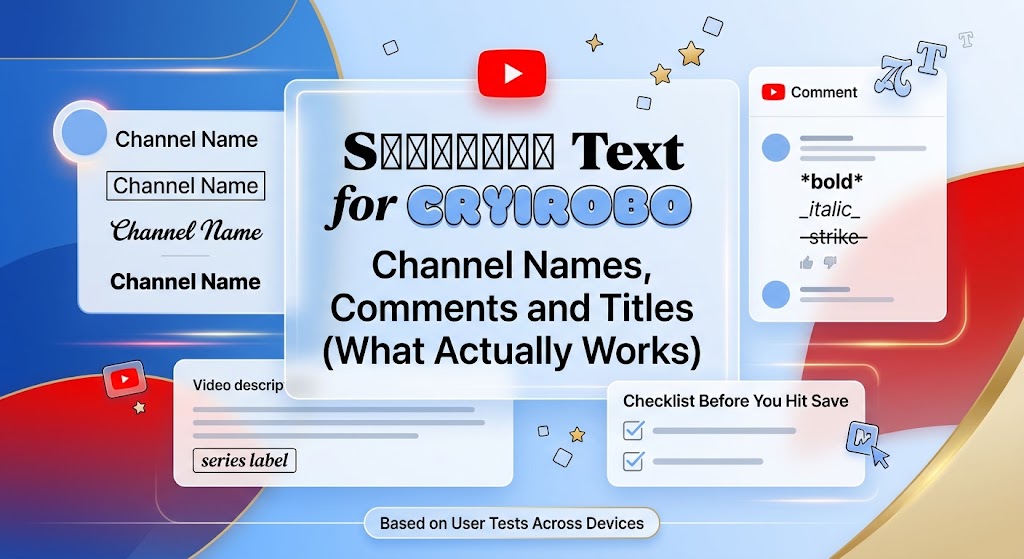
Last month, I changed a friend’s gaming channel name to bold serif letters. It looked sharp on my laptop. Then he opened YouTube on his old Android tablet and saw a row of tiny empty boxes where his name should be. We fixed it in two minutes, but it taught me something useful: stylish text for YouTube works great, as long as you know where it belongs.
YouTube isn’t like Instagram or TikTok. It has a few hidden formatting tricks of its own, some strict rules about names and titles, and one spot where fancy letters can quietly hurt your views. So, instead of a long list of fonts, this guide shows you exactly where styled text fits on YouTube, where it doesn’t, and how to set it up without breaking anything.
Quick answer: You can use stylish text for YouTube in your channel name, channel description, video descriptions, comments, and live chat by pasting Unicode characters. Your @handle can’t use them. Comments also support YouTube’s own bold, italic, and strikethrough. Keep video titles mostly plain, because YouTube search looks for normal letters.
Where Stylish Text for YouTube Actually Works
Before you paste anything, it’s worth knowing the rules for each spot. YouTube treats every text field a little differently. Here’s a simple map I put together after testing each one:
| Spot on YouTube | Unicode styled text? | Built-in formatting? | Good to know |
| Channel name | Usually yes | No | Up to 50 characters; only 2 changes in 14 days |
| @handle | No | No | Letters, numbers, dots, dashes, underscores only |
| Channel description | Yes | No | Up to 1,000 characters |
| Video title | Yes, but risky | No | 100 characters; hurts search if overused |
| Video description | Yes | No | 5,000 characters; no angle brackets |
| Comments | Yes | Yes | *bold*, _italic_, -strike- |
| Live chat | Yes | No | Moderators may filter odd characters |
The two rows that trip people up most are the handle and the video title. Your handle is part of your channel’s web address, so YouTube keeps it simple on purpose. Titles, on the other hand, accept styled letters just fine. The problem is what happens afterward, and we’ll get to that in a moment.
How to Style Your YouTube Channel Name
Your channel name is the best place for styled text. It shows under every video, in search results, and next to every comment you leave. A clean styled name looks like a small logo, and it’s easy to set up.
On a computer
- Type your channel name into a YouTube fonts tool and pick a style that’s easy to read at a small size.
- Copy that style.
- Open YouTube Studio and click Customization in the left menu.
- Go to the Basic info tab, paste your styled text into the Name box, and click Publish.
On a phone
- Copy your styled name from a generator in your phone’s browser.
- Open the YouTube app, tap your profile picture, then tap View channel.
- Tap the pencil icon next to your name, paste the new name, and save.
Two things matter here. First, YouTube lets you change your channel name only twice in 14 days. So don’t treat it like a test box. Try your styled name somewhere else first, like a note or a comment, before you commit. Second, if your channel has a verification badge, changing the name removes it. You’d need to apply again, and that can take a while. For a big channel, I honestly wouldn’t risk it just for a new style.
A quick tip on length: styled names look best when they’re short. Something like “�������� ����������” reads well even in the tiny text under a video thumbnail. A 40-character styled name, however, gets cut off and becomes hard to read.
YouTube’s Hidden Comment Formatting
Here’s something many creators don’t know. YouTube comments already support basic formatting, no generator needed. You just wrap your words in symbols:
- Bold: put asterisks on both sides, like *great video*
- Italic: put underscores on both sides, like _so true_
- Strikethrough: put hyphens on both sides, like -old price-
These work in comments and replies, both on the app and on a computer. They don’t work in titles, descriptions, or your channel name, though. For those spots, you’ll still need Unicode styled text.
There’s one quirk I ran into while testing. Because hyphens trigger strikethrough, a comment like “the score went from -5 to -10 in one round” can end up with a line through part of the text. It depends on how the hyphens line up with the spaces. If that happens, add a space or rewrite the numbers as “minus 5”. It’s a small thing, but it can make a serious comment look odd.
Personally, I prefer the built-in formatting for comments. It looks natural, it’s fast, and it doesn’t show up as boxes on older phones. I only use Unicode letters in comments when I want a style YouTube doesn’t offer, like cursive for a birthday shout-out in a live stream.
Should You Put Fancy Letters in Video Titles?
This is the big question, and my answer is: mostly no. Here’s why.
YouTube search, like Google search, matches normal letters. If your title says “�������� ������������ ����������”, someone typing “easy banana bread” won’t match those styled words. Your video can still show up through the description and tags, but you’re making YouTube’s job harder for no real gain. Screen readers also stumble over styled titles, so viewers who rely on them may hear gibberish.
It can be worth it when:
- You style just one word, like a series name, and keep the searchable part plain
- The video is for your existing subscribers, like a members-only update or a channel announcement
- The styled part is a label, such as “�������� ��”, not the main topic
Skip it when:
- The video depends on search traffic, like tutorials, reviews, or recipes
- Your whole title would be styled
- You’re uploading Shorts that need to reach new viewers quickly
A good middle ground looks like this: “Easy Banana Bread in 30 Minutes | ������������ ������������ ����. ��”. The searchable part stays plain, and the series label gets the style. Meanwhile, keep in mind that video titles can’t contain angle brackets like < or >, so skip any styles that use them as decoration.
5 Mistakes I See Creators Make With Styled Text
1. Styling the whole channel description
Your description has room for 1,000 characters. That’s a lot of text to read in script or bubble letters. Instead, style one line at the top, like a tagline, and keep the rest plain so people can actually read your upload schedule and links.
2. Putting contact details in fancy letters
Email addresses, business links, and phone numbers should always stay plain. Otherwise, people can’t copy them properly, and styled email addresses won’t work at all when pasted into an email app.
3. Picking a style with missing letters
Some alphabets are incomplete. Small caps has no real “x”, for example, and script styles have no matching numbers. So a name like “Max 99” in script ends up half styled and half plain. Always read your styled text slowly before you paste it.
4. Forgetting about dark mode
Most people watch YouTube in dark mode. Thin script letters that look pretty on a white background can almost disappear on a dark one. Check both themes in your settings before you publish.
5. Changing the name too often
Every name change confuses returning viewers for a while, and the 14-day limit can leave you stuck with a style you don’t like. Pick one style and stick with it for months, not days.
My Test: How Styled Names Look Across Devices
After the tablet incident, I tested the same styled channel name on four devices: a recent iPhone, a newer Samsung phone, a Windows laptop in Chrome, and that old Android tablet. The results were pretty clear.
Bold sans and bold serif looked right on all four. Script looked fine on the three newer devices, although the letters appeared thinner on Windows. Double-struck letters (like ������������) showed correctly on the phones and laptop, but the old tablet showed boxes again. Small caps worked everywhere, which surprised me a little.
So here’s the honest limitation: no tool can promise your styled name will look the same for every viewer. The final look depends on each person’s device and its built-in fonts. What you can do is choose styles with wide support. In my experience, bold sans is the safest pick for YouTube. It’s easy to read in small sizes, it works in dark mode, and it almost never turns into boxes.
If you want to see many options side by side before choosing, a stylish name generator lets you compare dozens of styles for the same name at once. That saves you from pasting and deleting over and over.
A Quick Checklist Before You Hit Save
Run through this list before you change anything on your channel:
- My styled name is short and readable under a thumbnail
- I checked it in light mode and dark mode
- No missing letters or plain numbers look out of place
- My @handle stays plain, since styled text won’t work there
- The searchable words in my video titles are in normal letters
- Contact details and links in my description are plain
- I know I only get 2 name changes in 14 days
If every box is ticked, you’re good to go. And if you’d like to try the same idea on your other profiles, you can use the same free font generator to keep your look matching across YouTube, Instagram, and TikTok.
Frequently Asked Questions
Can I use fancy fonts in my YouTube handle?
No. YouTube handles only allow letters, numbers, periods, dashes, and underscores. You can use styled text in your channel name instead.
How do I make text bold in YouTube comments?
Put an asterisk on each side of the words, like *this*. Use underscores for italics and hyphens for strikethrough.
Will styled text hurt my YouTube search ranking?
It can in video titles, because search matches normal letters. Keep the main keywords in plain text and style only a small label.
How many times can I change my YouTube channel name?
YouTube allows two name changes within a 14-day period. Changing it also removes a verification badge if you have one.
Why does my styled channel name show as boxes for some viewers?
Their device doesn’t have fonts for those characters. Bold sans styles have the widest support and rarely show as boxes.