 English
 Deutsch
 Polski
 Română
 Čeština
 Melayu
 Bahasa Indonesia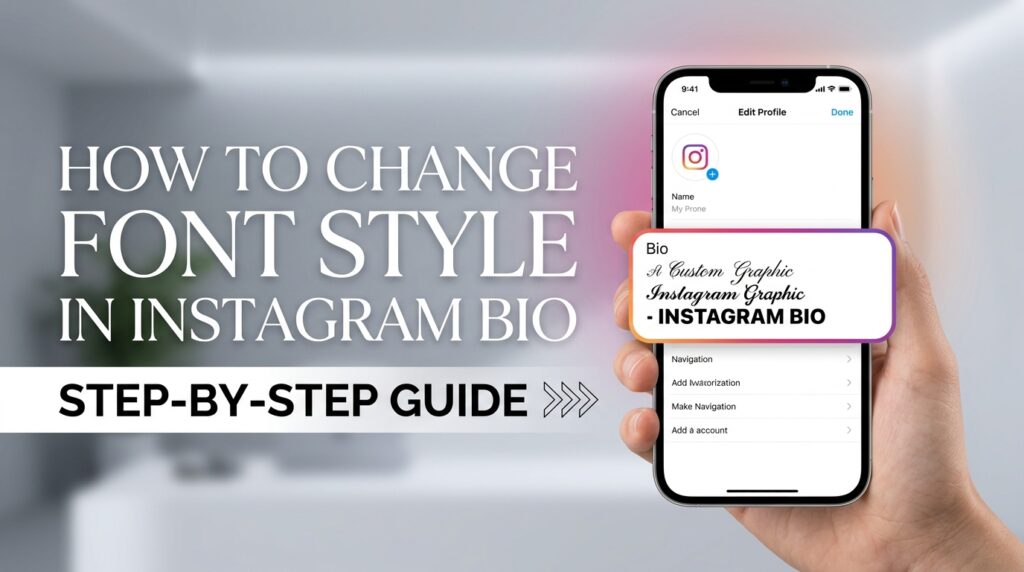
Your Instagram bio is the very first thing people see when they land on your profile. It acts as your digital front door. Because of this, making a strong first impression matters a lot. Standard text in your profile can look plain and boring. Changing your text style helps your account grab attention fast.
Many creators, brands, and casual users wonder how to customize their profile text. Instagram does not offer built-in custom text options inside the app. However, you can easily change your text style using online tools. In this guide, you will learn how to change your text style in a few simple steps.
Why You Should Customize Your Instagram Bio Text
A unique profile setup helps you stand out from millions of active users. When someone lands on your page, you only have a few seconds to catch their eye.
Custom styling offers several distinct benefits:
- Attracts Immediate Attention: Unique characters draw the reader’s eyes straight to your description.
- Shows Your Personal Aesthetic: You can pick custom characters that fit your personality or brand image.
- Organizes Your Information: Bold headers make your details much easier to read quickly.
- Highlights Key Calls to Action: Unique letters make your link or contact info pop out to visitors.
How Custom Fonts Work on Social Media Platforms
You might wonder how special characters display on Instagram without breaking the layout. The app actually uses a global standard called Unicode.
Standard text on your phone uses standard Unicode characters. Custom online text generators do not create entirely new files. Instead, they swap your normal letters with special visual symbols from the vast Unicode library.
Because these styles are basic symbols, Instagram recognizes them easily. You can copy these characters from a browser and paste them directly into your profile without any code issues.
Step-by-Step Guide to Changing Your Font Style
Changing your profile text takes less than two minutes. Follow these clear steps to update your look today.
Step 1: Write Your Bio Text First
Before formatting, draft your text in a basic notes app on your phone. Instagram limits your profile description to 150 characters. Because of this character limit, keep your message clear, focused, and concise.
Step 2: Open a Reliable Text Generator Tool
Open your web browser and visit an online generator like our Font Generator. These tools are completely free to use. Also, you do not need to download extra apps or sign up for an account.
Step 3: Type Your Text into the Generator
Type or paste your drafted text into the input field at the top of the generator page. The tool instantly converts your plain text into dozens of unique visual variations below.
Step 4: Pick Your Favorite Custom Style
Scroll through the generated list of styles. You will see flowing cursive scripts, heavy bold options, bubble letters, and decorated designs. Choose a style that matches your overall profile vibe.
Step 5: Copy the Styled Text
Click or tap the text style you like best. Tap the Copy button to save the new characters directly to your device clipboard.
Step 6: Open Instagram and Edit Your Profile
Launch the Instagram app on your phone. Tap your profile picture in the bottom right corner to go to your main page. Tap the Edit Profile button located under your main bio header.
Step 7: Paste Your New Styled Text
Tap on the Bio field. Clear out your old text, then hold down and select Paste to insert your new styled characters.
Step 8: Save Your Changes
Tap the checkmark or Done button in the top right corner to save your new layout. View your main profile page to make sure everything looks clean and well aligned.
Best Practices for Styling Your Instagram Profile
Using custom characters is fun, but overdoing it can hurt your account. Here are key tips to keep your profile readable and professional.
1. Prioritize Readability
Some decorative characters are very hard to read on small screens. If visitors cannot read your text quickly, they will leave your page. Pick clear, simple styles for your main information.
2. Mix Standard Text with Custom Headers
Do not convert your entire bio into complex symbols. Instead, use styled text for key headlines or your name line only. Keep the rest of your text in standard lettering so people can skim your details easily.
3. Consider Screen Readers and Accessibility
Screen readers for visually impaired users often read Unicode symbols as individual character names. Because of this, an entire bio in symbols can sound confusing to assistive tools. Keeping symbols to a minimum helps keep your profile accessible to everyone.
4. Test Across Different Devices
Some older Android phones or computer screens might not support newer Unicode symbols. In those rare cases, users might see small blank boxes instead of your letters. Check your profile on a second phone or desktop screen to confirm your text renders correctly.
Top Popular Styles You Can Use
Different profile styles fit different account niches. Here is how you can pair various designs with your specific goals.
- Cursive & Script Styles: Ideal for personal blogs, lifestyle creators, fashion accounts, and wedding planners. These designs add a touch of elegance.
- Bold & Heavy Styles: Perfect for business accounts, fitness coaches, and major announcements. They help important keywords stand out instantly.
- Gothic & Fraktur Styles: Popular among alternative fashion brands, music artists, and gaming channels wanting a bold look.
- Small Caps & Minimal Sans-Serif: Great for modern brands, tech creators, and minimalist accounts. They offer a clean aesthetic without looking messy.
Frequently Asked Questions
Will changing my text style get my account banned?
No. Using custom characters does not violate Instagram terms of service. You are simply pasting standard Unicode symbols that the app fully supports natively.
Can I change my Instagram username font style too?
You can use some basic Unicode symbols in your display name field. However, your actual account handle (the @username) must stick to standard letters, numbers, underscores, and periods.
Why do some letters look like blank boxes?
If a symbol appears as a square box, your phone operating system might be outdated. Updating your phone software usually fixes character display errors immediately.
Are text generator tools free to use?
Yes, tools like our Cool Font Generator are 100% free. You can generate, copy, and paste styles as many times as you like without restrictions.