 English
 Deutsch
 Polski
 Română
 Čeština
 Melayu
 Bahasa Indonesia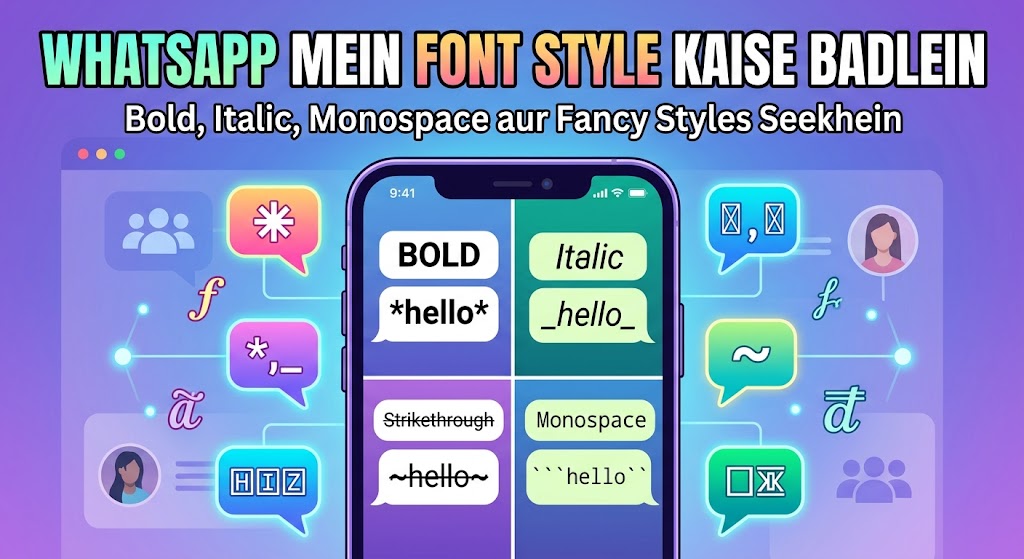
Why You’d Want to Change Font on WhatsApp in the First Place
WhatsApp chats can get messy fast, especially when you’re in a family group with 60 people and someone forwards three good-morning images every hour. That’s why learning how to change font on WhatsApp is such a handy skill. A bold line makes your main point jump out, while a strikethrough shows a quick correction without deleting anything. Meanwhile, monospace text looks neat when you share a code, an order number, or a short list of prices. WhatsApp doesn’t give you a font menu like Word or Google Docs does, though. You can’t pick Arial or Times New Roman and apply it to your chat. Instead, you get two different tools. The first is WhatsApp’s built-in formatting, which uses small symbols like asterisks and underscores around your words. The second is Unicode styled text, which you create with an outside tool and paste into the app. Both work, but they work in different places and in different ways. Honestly, I use the built-in formatting almost every day, and I only reach for Unicode styles when I want something the app can’t do, like cursive letters in my profile name. Knowing when to use each one saves you a lot of trial and error. It also stops you from sending a message full of stray asterisks, which happens more often than you’d think when a symbol lands in the wrong spot. In the next sections, you’ll see exactly how both methods work on Android and iPhone. You’ll also learn which styles show up correctly for the person on the other end, where fancy text works outside of chats, and what to do when things look strange. By the end, you’ll be able to style any message in a few seconds, without guessing.
WhatsApp’s Built-In Text Formatting Explained
Let’s start with the tools WhatsApp already gives you, because they’re free, fast, and work on every phone that runs the app. Each style uses a symbol that you place right before and right after the words you want to change. For bold, you wrap text in single asterisks, so *hello* turns into a bold “hello” once you send it. For italics, you use underscores, like _hello_. For strikethrough, you use tildes, like ~hello~. Monospace needs three backticks on each side, which gives you that typewriter look. WhatsApp also added a few newer options in 2024. A single backtick on each side creates inline code, a line that starts with “> ” turns into a quote, and lines that start with “* ” or “1. ” become bulleted or numbered lists. These are great for shopping lists or meeting notes in a work group. Here’s one detail you only learn by using it a lot: the symbol has to touch the word. If you type “* hello*” with a space after the first asterisk, WhatsApp ignores it and sends the asterisks as plain characters. The same thing happens when a formatting symbol sits in the middle of a word. So, keep the symbols snug against your text. Also, you can mix styles. For example, *_hello_* gives you bold italic text, which is useful for a warning or a deadline. The best part is that this formatting doesn’t depend on special characters, so anyone on WhatsApp sees it properly, even on an older phone. Similarly, it works in WhatsApp Web and the desktop app. The main downside is the limited choice. You won’t find cursive, bubble letters, or double-struck styles here, and that’s where Unicode text comes in.
Step-by-Step: How to Change Font on WhatsApp Messages
Now let’s put it into practice. There are actually two ways to use WhatsApp’s own formatting, and you can pick whichever feels easier on your phone. The symbol method works everywhere, while the menu method saves you from remembering which symbol does what. If you’d rather use a style WhatsApp doesn’t offer, the last steps cover pasting Unicode text instead. Follow these steps in order:
- Open any chat and type your message as usual.
- Add the right symbols around the words you want to style, such as *asterisks* for bold or _underscores_ for italics.
- Alternatively, long-press a word to select it, then drag the handles to cover the full phrase.
- On Android, tap the three-dot menu that pops up and pick Bold, Italic, Strikethrough, or Monospace. On iPhone, tap the arrow in the pop-up bar and choose Format, then pick your style.
- For a style WhatsApp can’t make, type your text into an online generator, copy the style you like, and paste it into the message box.
- Check the preview in the text box and hit send.
After you send it, the symbols disappear and only the styled text shows. If you still see asterisks or underscores in the sent message, something is out of place, usually a space next to the symbol. Just edit the message by long-pressing it and choosing Edit, which WhatsApp allows for 15 minutes after sending. I prefer the menu method on iPhone because my thumb doesn’t have to hunt for the backtick key, which hides on the second symbol page of most keyboards. On Android, though, the symbol method feels quicker once you’ve used it a few times. Either way, the result looks the same to whoever reads it, whether they’re on a phone, a tablet, or WhatsApp Web.
Using Unicode Styled Text for Fancier Looks
So what if you want a look that asterisks can’t create? That’s where Unicode styled text steps in. Unicode is the shared list of characters that every modern device understands, and it includes whole alphabets that look bold, italic, cursive, boxed, or circled. These letters aren’t a font in the usual sense. Instead, each one is its own character, so a styled “��” is completely different from a normal “A” as far as your phone is concerned. Because of this, the style stays with the text wherever you paste it. You don’t need to install anything, and the person reading your message doesn’t need any special app either. To create these letters, you type your words into a tool, and it swaps each normal letter for its styled twin. For instance, a bold text generator can give you several weights of bold, including sans-serif and serif versions. That’s different from WhatsApp’s own bold, which only has one look. Unicode bold also works in places where the asterisk trick doesn’t, such as your profile name or a group description. Furthermore, you’ll find styles like double-struck letters, small caps, and upside-down text, which WhatsApp simply doesn’t offer. There’s a catch, though. Some alphabets aren’t complete. Cursive and script styles, for example, have no matching numbers in Unicode. So, if you type “Party at 7” in cursive, the “7” stays a normal digit, and the result can look a bit uneven. I usually write numbers as words in cursive messages for that reason. Another thing to remember is search. If you send a styled word, you won’t find it later with WhatsApp’s chat search, because the search looks for normal letters. That’s not a big deal for a birthday wish, but it matters for addresses or anything you’ll need to look up again.
Which WhatsApp Font Styles Work Best and Where
Not every style fits every situation, and a little planning keeps your messages easy to read. Some styles are made for quick emphasis, while others work better for names and short headings. Based on regular use, here’s a simple guide to where each one shines:
- Built-in bold (*text*): best for key points, dates, and deadlines in busy group chats.
- Built-in italics (_text_): good for quotes, titles, or a softer tone.
- Built-in strikethrough (~text~): handy for corrections or crossing items off a list.
- Built-in monospace (“`text“`): great for codes, prices, and order numbers that need to line up.
- Unicode bold sans: clean and readable for your profile name or About line.
- Unicode cursive or script: pretty for birthday wishes and names, but tiring in long paragraphs.
- Small caps and bubble letters: fun for one or two words, not whole messages.
As a rule of thumb, use WhatsApp’s own formatting for anything inside a regular conversation. It’s reliable, it works on every device, and people are used to seeing it. Save Unicode styles for places where the built-in tricks don’t reach, such as names, group titles, and status updates. Personally, I think one styled word per message is enough. When every sentence is bold or cursive, nothing stands out anymore, and your message starts to look like a forwarded ad. Also, think about who’s reading. Older relatives on smaller screens may find thin script letters hard to read, while bold sans text stays clear even at small sizes. Similarly, if you run a WhatsApp Business account, keep customer messages simple and use bold only for the parts that matter most, like prices or opening hours. Consistency helps too. If you style your business name one way in your profile, keep that same style in your catalog titles and status posts, so customers recognize it at a glance.
Styling Your WhatsApp Name, About, and Group Names
Chats aren’t the only place where styled text looks good. Your profile name, About line, and group names can all hold Unicode characters, and this is where fancy fonts really earn their place. That’s because the asterisk and underscore tricks don’t work in these fields. If you type *Ali* as your profile name, people will literally see the asterisks. So, for names, you’ll need to paste Unicode text instead. To change your profile name, open Settings, tap your name at the top, then tap the name field and paste your styled text. WhatsApp allows 25 characters for your name, so keep it short. Your About line gives you more room, up to 139 characters, which is enough for a short styled quote. A gentle script style from a cursive text generator works well here, since people read it slowly anyway. For groups, open the group, tap the group name at the top, and edit it the same way. Only admins can change group names if the group settings restrict it, so check with your admin first. Here’s a practical tip: keep the first word of a group name in normal letters. When people search their chat list, they type plain letters, and a fully styled group name won’t show up in the results. That’s frustrating in a busy phone with 200 chats. Likewise, contacts who’ve saved your number will see the name they saved, not your styled profile name. Your styled name only shows to people who haven’t saved you, or in groups where they see your profile name next to your messages. Still, it’s a nice personal touch, and it takes less than a minute to set up. Just preview it on your own phone first, because a name that looks great in a generator can look cramped once it sits next to your profile photo.
Fixing Common Problems With WhatsApp Fonts
Even when you follow every step, a few problems come up again and again. The most common one is formatting that doesn’t apply. If your message arrives with visible asterisks or underscores, there’s probably a space between the symbol and the word, or a punctuation mark in the wrong place. Fix the spacing and send it again, or use Edit within 15 minutes. Another problem is empty boxes or question marks. This happens with Unicode text when the other person’s phone doesn’t have a font that includes those characters. Older Android phones are the usual cause, since newer phones have much better character support. Unfortunately, you can’t fix someone else’s phone. So, if you’re messaging older relatives, stick to WhatsApp’s built-in formatting, which never shows boxes. Sometimes styled text also looks slightly different on each device. An iPhone, a Samsung phone, and a Windows PC each draw characters using their own system fonts, so script letters may look thicker on one and thinner on another. That’s normal. Additionally, some keyboards try to “fix” styled letters by swapping them back to normal ones while you edit. Turning off autocorrect for a moment usually stops this. Here’s an honest limitation worth knowing: WhatsApp doesn’t let you change the actual font family used across the app. You can adjust the font size in Settings, under Chats, on Android, and on iPhone the app follows your phone’s text size setting. Beyond that, there’s no built-in way to switch the whole app to a different typeface, and any app that promises to do so usually needs risky permissions. In my opinion, it’s not worth installing a third-party keyboard or modded app just for fonts. A simple copy-and-paste tool does the job without asking for access to your chats, contacts, or anything else on your phone.
Tips for Making Your WhatsApp Messages Look Clean
Once you know the tools, the real skill is using them with a light touch. Start with purpose. Ask yourself what you want the reader to notice first, and style only that part. In a school parents’ group, for example, bolding the date and time of a meeting helps far more than bolding the whole message. Next, use lists for anything with more than two items. WhatsApp’s newer bullet and numbered list formatting makes shopping lists, packing lists, and to-do items much easier to scan. Then, think about length. Short messages with one styled word feel friendly, while long messages full of styles feel like spam. Moreover, match your style to the mood. Cursive fits a wedding invitation or a birthday wish, whereas monospace suits a tracking number or a Wi-Fi password. If you use styled text for your business, keep a small note on your phone with your favorite styles already copied. That way, you won’t need to regenerate them every time, and your branding stays consistent. Another useful habit is checking your message on WhatsApp Web now and then. Things that look fine on a small screen can look oversized or uneven on a laptop, especially emoji mixed with styled letters. I’ve also found that pairing a single emoji with one styled heading works better than stacking many emoji together. And don’t forget accessibility. Screen readers often read Unicode letters oddly or skip them completely, so avoid using styled text for important details like addresses, phone numbers, or payment info. Keep those in plain letters or WhatsApp’s own bold. If you’re after more ideas, try typing the same short phrase into a font generator and comparing a few styles side by side before you pick one to use as your regular look.
Final Words
Changing fonts on WhatsApp is easier than it looks once you know there are two separate tools. The built-in symbols handle bold, italics, strikethrough, monospace, quotes, and lists inside your chats, and they work for everyone. Unicode styled text covers the rest, from cursive profile names to bold group titles, where the symbol tricks don’t reach. Use each one where it fits, keep important details in plain text, and test your styles on more than one screen. With that approach, your messages will look neat and personal without ever becoming hard to read.
FAQs
Can I change the font style of the whole WhatsApp app?
No. WhatsApp only lets you change the font size. You can style individual messages with symbols or paste Unicode styled text, but the app’s main font stays the same.
How do I write bold text on WhatsApp?
Put a single asterisk on each side of the word, like *hello*. You can also select the text and choose Bold from the formatting menu.
Why can’t the other person see my fancy font?
Their phone probably doesn’t support those Unicode characters, so they see boxes. WhatsApp’s built-in bold and italics always display correctly.
Can I use fancy fonts in my WhatsApp name?
Yes. Paste Unicode styled text into your profile name, which allows up to 25 characters. The asterisk and underscore tricks don’t work there.
Does WhatsApp formatting work on WhatsApp Web?
Yes. Bold, italics, strikethrough, monospace, quotes, and lists all work on WhatsApp Web and the desktop app, just like on your phone.