 English
 Deutsch
 Polski
 Română
 Čeština
 Melayu
 Bahasa Indonesia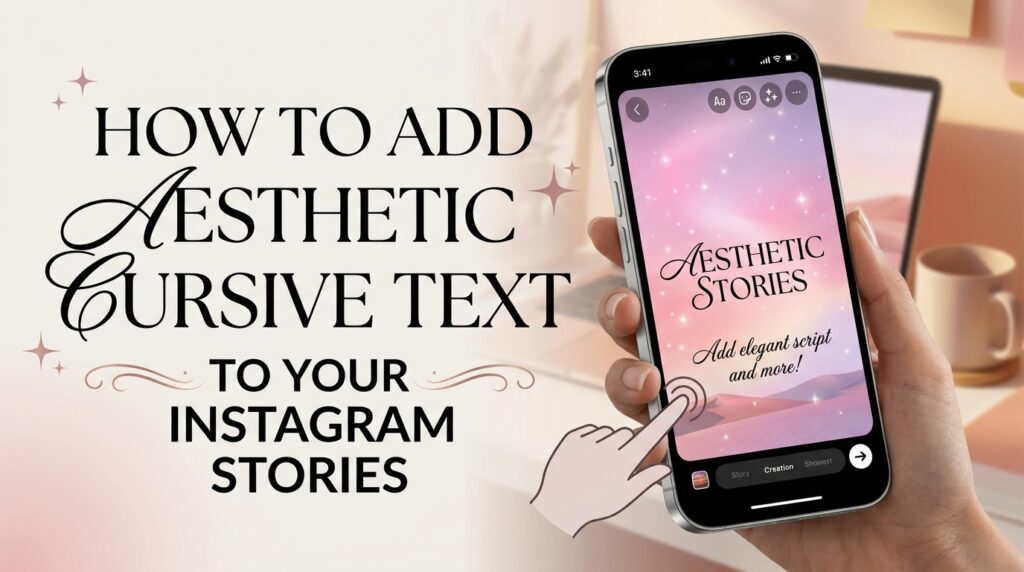
Instagram Stories are an excellent way to connect with your audience in real-time. But with over 500 million daily users, making your stories stand out can be challenging. Because of this, creators are constantly searching for new aesthetic styles.
One of the most popular and elegant trends is adding beautiful cursive text. Traditional story text options are limited and often feel outdated. Custom cursive scripts, however, add personality, warmth, and a sophisticated touch to your content.
In this step-by-step guide, you will learn exactly how to bypass the standard limitations. This simple method allows you to use virtually any aesthetic script style on your next Instagram Story.
The Value of Aesthetic Text in Stories
Standard text fonts serve their purpose for basic information. However, unique characters offer specific benefits for your content’s engagement.
- Grabs Immediate Attention: Flowing cursive lines instantly draw the reader’s eyes away from plain background imagery.
- Shows Your Personal Vibe: Different cursive styles communicate different moods, from romantic and soft to playful and bold. Because of this, you can better align your text with your video content.
- Makes Stories More Shareable: People are more likely to share visually beautiful stories, which naturally increases your account’s organic reach.
- Highlights Important Details: Using a unique script style makes calls to action like New Post or Swipe Up pop off the screen.
Why Instagram’s Built-In Options Can Feel Limited
Instagram currently offers a few cursive and handwritten options. However, they are basic and do not allow true customization. You cannot change the flowing style, adjust letter spacing, or choose from exotic calligraphy designs.
Because of this limitation, users cannot achieve a truly consistent visual identity. Custom text tools bridge this gap by offering hundreds of unique visual interpretations of your words, which you can easily transfer directly into the app.
How Custom Fonts Work on Mobile Devices
You do not need to download or install complex font files (.ttf) to use cursive on Instagram. The solution lies in a universal technical standard called Unicode.
Unicode maps thousands of unique visual symbols to standard letters and numbers. Special text generator websites simply replace your normal characters with their visual symbol equivalents.
These symbols look like distinct cursive letters but act like basic text data. Because of this, Instagram recognizes them natively, allowing you to copy, paste, and adjust them exactly like standard story text.
Step-by-Step Guide to Adding Cursive Text
This process takes less than a minute. Follow these simple steps to customize your next story with beautiful script.
1. Draft Your Perfect Text
Before formatting, decide exactly what your story text should say. Character limits are not an issue for story captions, but keeping your message concise helps maintain visual appeal.
2. Open an Online Generator Tool
Launch your mobile web browser and visit a free generator like our Cursive Text Generator
. These tools do not require any accounts or downloads.
3. Type Your Text into the Tool
Paste or type your desired message into the input field at the top of the page. You will see dozens of variations appear instantly.
4. Choose Your Favorite Cursive Style
Scroll through the generated list. You will find different cursive styles, from extremely delicate calligraphy to heavier script fonts. Choose the one that best fits your story’s mood.
5. Copy the Styled Script
Tap or click the specific text style you want. A popup or button will confirm that the characters have been copied to your device’s clipboard.
6. Create an Instagram Story
Open the Instagram app and tap your profile picture or the plus icon (+) to start a new story. You can snap a new photo, upload a video from your camera roll, or use a plain color background.
7. Add Standard Text to Your Story
Tap the standard text icon (the ‘Aa’ button) in the top right corner of the story creator screen.
8. Paste Your New Cursive Script
Tap the text input area, then hold down and select Paste to insert the beautiful cursive symbols from your clipboard.
9. Customize with Instagram Tools
Once pasted, you can treat this custom cursive text like standard lettering. Use the existing color wheel to match the script to your photo. Drag the text to resize or reposition it on the screen for the perfect layout.
10. Share Your Unique Story
Finish adding other elements like stickers, music, or doodles, then tap the share button to show your aesthetic creation to your followers.
Best Practices for Using Cursive Text in Stories
Using custom cursive text is a powerful visual strategy, but using it effectively requires balance. Follow these simple guidelines to maximize impact.
Use Cursive sparingly as Accents
Do not convert large blocks of descriptive text into complex calligraphy. This makes them hard to read and often frustrates viewers. Instead, use beautiful script only for short headers, quotes, dates, or specific calls to action.
Ensure Perfect Contrast
Delicate cursive lines can easily disappear on busy video or photo backgrounds. Make sure your text color contrasts sharply with the background. You can also use Instagram’s native text backgrounds to create a clean separator layer for better visibility.
Stick to One Font Style per Story
Mixing multiple decorative styles on a single story often creates a messy, unprofessional look. Choose one key cursive style and use it consistently for all headers within that specific story sequence.